

Saving a video and finding it looks worse than it did in the app is a common annoyance, and it is almost never caused by the download compressing anything. Platforms store several versions of every upload, and a downloader that gives you one unlabelled button is usually handing you a middle or low one because that file resolves fastest.
So “best quality” comes down to a simple question: does the tool show you the options and let you choose? The five below all do, with Snaptube at the top, and they differ in how far up the ladder they go and how honest the labels are.
1. Snaptube
What is Snaptube
The Snaptube download application is an Android video and music downloader with the widest resolution range in this comparison. It presents the available versions of a video and lets you take whichever one you want, from a tiny file up to the maximum the source actually holds.
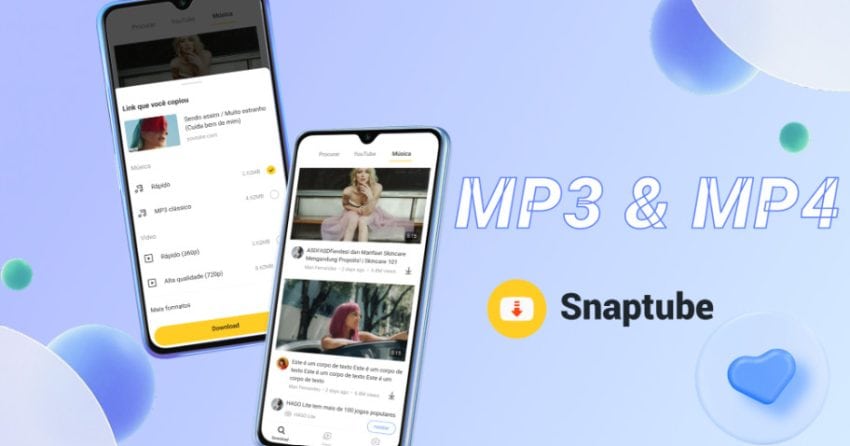
The tested range runs from 144p up to 8K, so the app never caps you below whatever the source actually holds. On the audio side it covers 70kbps to 320kbps, which is the equivalent ladder for sound.
Key Features
- Resolution from 144p to 8K, matching whatever the source actually offers
- Audio from 70kbps up to 320kbps in MP3 or M4A
- MP4 output, plus M4A for audio-only saves
- Format memory, so your quality preference carries to the next download
- More than 100 platforms plus general web page video detection
- Subtitle downloads, preserved alongside the video file
- Built-in player for checking the result without another app
- Around 20MB installed, storage permission only, completely free
How to Download at the Highest Available Quality
- Install Snaptube from the official site or from your phone’s store — Xiaomi GetApps, Huawei AppGallery, OPPO App Market, vivo V-Appstore, HONOR App Market, Samsung Galaxy Store, or Palm Store. It is not carried on Google Play.
- Paste the video link, or find the video through the search inside the app.
- Look at the resolution list before tapping anything, and take the highest entry offered. If the list stops at 720p, that is the best version the source has. A downloader can only give you files that already exist, so if something was uploaded at 720p, then 720p is what you can save.
Why Snaptube Wins on Quality
Three reasons, in order of how much they matter.
The first is range. Most competitors offer a short list clustered around 720p and 1080p. Snaptube exposes the whole ladder, so when a source does hold something better, you get it rather than the tool’s default ceiling.
The second is that video and audio arrive together. This is where a lot of “high quality” downloads actually fail: at higher resolutions many platforms serve the picture and the sound as separate streams, and tools that do not recombine them hand you a silent file or force you to pick 720p to get audio. Snaptube delivers a complete MP4 at the resolution you chose.
The third is that the quality choice persists. Format memory means you set your preference once and every later download follows it, so you do not end up with a mixed library because you tapped too fast on the fourth video. Add subtitle downloads that stay with the file, a built-in player to verify the result, and a 20MB free app with one permission, and there is nothing to trade away for the quality. Each Snaptube update also keeps the resolution list current when platforms change how they serve files.
2. VidMate
VidMate presents multiple quality tiers before downloading and supports 1080p, outputting MP4 and MP3. It handles background downloads and resume, so a large high-resolution file surviving an interrupted connection is a real advantage — big files are exactly where transfers fail.
The trade-offs are the usual ones for this app. Reviews consistently point to heavy advertising, including full-screen and pop-up placements, which adds friction to every download. It is not on Google Play, so the APK comes from vidmateapp.com and you must allow installs from unknown sources. Security firm Upstream previously reported hidden background ad activity and device data collection in VidMate builds, which is part of why it is distributed outside the store, and counterfeit APKs are common — use the official site only.
3. Hitube

Hitube supports 1080p and comes in two forms, which affects what you get. The web version runs in any browser with nothing installed and preserves the original quality of what it fetches; the Android APK from the official site adds batch downloading, resume support, and a built-in player.
Output covers MP4 in HD or SD, plus MP3, M4A, and JPG, so a single tool handles video, audio, and images at consistent quality. The developers describe it as HD quality, completely free, no ads, and no signup — meaning no ad layer between you and the quality selector. It focuses on social platforms: Instagram, Facebook, TikTok, Twitter/X, and Pinterest, with the APK extending to what the developers say is 50-plus platforms. If you want app-like access without installing, the web version can be added to your home screen.
4. Videoder

Videoder built its reputation partly on offering more resolution options than its contemporaries, with a clean interface that surfaced them clearly. It supports 1080p, extracts audio as MP3, and includes multi-threaded acceleration that helps meaningfully with large files, plus multi-link batch downloads.
The problem is upkeep. Uptodown has marked the project as discontinued, with catalogued releases ending in 2023, and newer builds only surface on third-party APK sites. High-resolution downloading is precisely the thing that breaks first when a parser falls behind, because separated audio and video streams need current handling to recombine correctly. Modified builds circulate widely. If you try it, take it from videoder.net and treat it as a legacy option.
5. TubeMate
TubeMate shows a resolution list before downloading and supports 1080p, outputting MP4, MP3, M4A, and FLV. Its multi-threaded downloading helps with the larger files that high-quality saves produce, and it can convert to audio during the download instead of as a second pass.
Devian Studio still maintains it, with a release in June 2026. Take it from tubemate.net only, since fake APKs and imitation sites are unusually common for this brand. The free version’s full-screen ads have drawn Trustpilot complaints, and parsing can stall on sources that change how they deliver files, which tends to hit the higher resolutions first.
What “Best Quality” Actually Depends On
Three things, only one of which is the downloader:
- The source file. If it was uploaded at 720p, 720p is the ceiling. Nothing recovers detail that was never recorded.
- Whether the tool recombines separate streams. Above 1080p many platforms split audio from video. A tool that does not merge them gives you a silent file, which is why some downloaders quietly cap you at 720p.
- Your screen. A 1080p file on a phone screen is already more detail than the display can resolve. The higher resolutions matter when you will watch on a TV or a large monitor.
- The tool itself, which comes down to one practical test: does it show you the real options for the video in front of you, and does it hand over the one you picked with its audio intact?
Which One Should You Use?
Snaptube is the pick if quality is the priority: the widest resolution ladder, audio and video delivered together, a persistent quality preference, and no cost. Hitube is the best option if you would rather not install anything, since the web version keeps the source quality intact. VidMate and TubeMate both show proper resolution lists and are fine choices if their extras appeal, accepting the advertising. Videoder is worth knowing about historically rather than relying on now.